Gemini Memory summary lets you see and delete what the AI knows
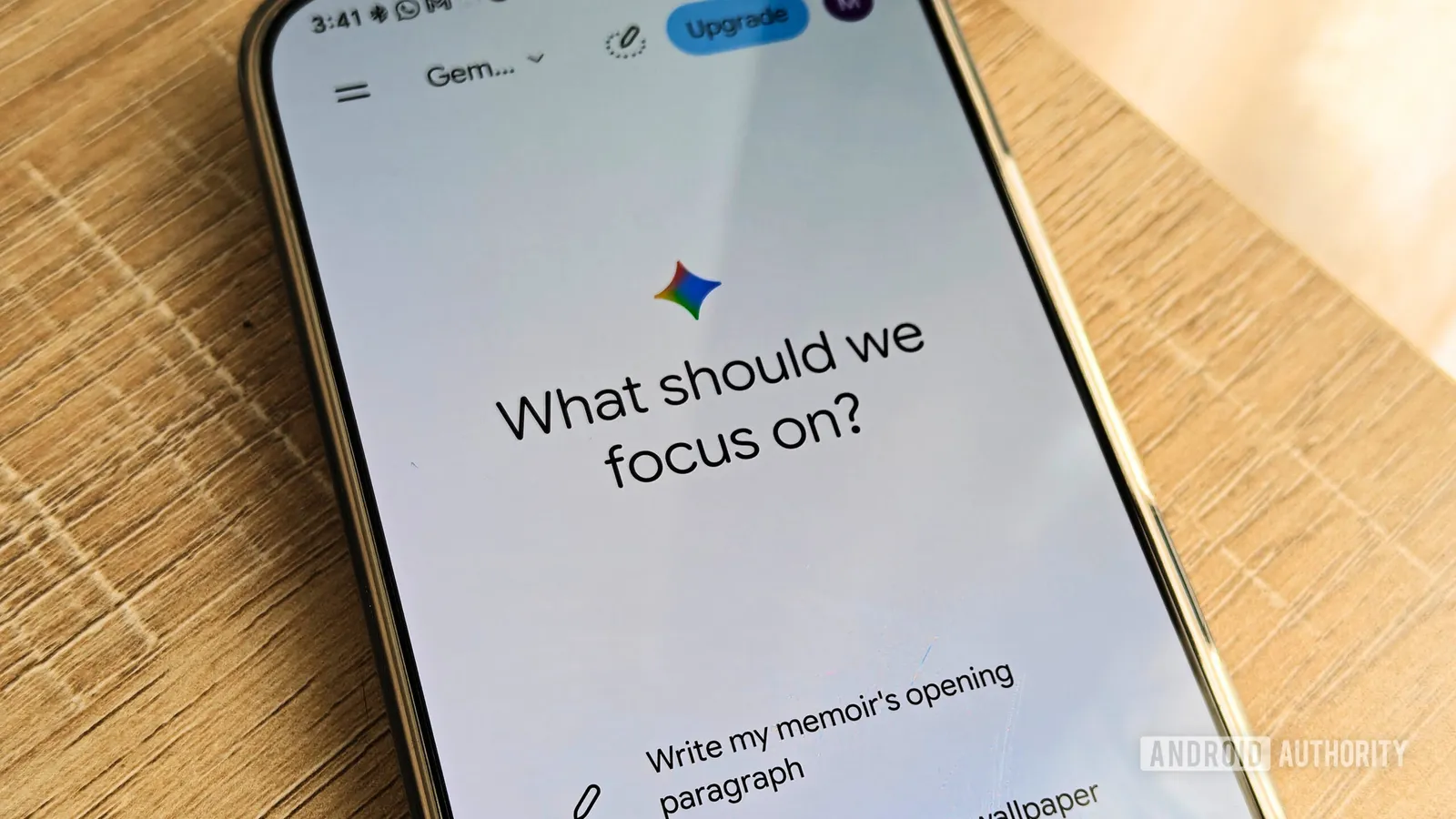
Google's Memory summary gathers everything Gemini has stored about you into one page, making it easier to edit or remove details. The feature is rolling out through the Gemini web app and Android app.
Key takeaways
- Gemini's Memory summary shows the personal details the chatbot has stored in one place.
- The feature is reached through Settings, Personal Intelligence and Memory summary on the web and in the Android app.
- Details can be edited with the pen icon or removed through the Add or remove details box.
- Clearing everything requires turning Memory off, deleting chats and stopping activity from being kept.
In this article
A single page for everything Gemini remembers
Gemini's Memory feature lets the chatbot carry context between conversations, but until now it has been hard to tell exactly what it has stored. According to Android Authority, Google has launched a Memory summary that collects those details in one window, so users can review and adjust them without digging through old chats.
The summary can cover where you live, your interests, health details and preferences. Gemini draws on past conversations and, when Personal Intelligence and connected apps are enabled, on data from other Google services as well. The feature is available in English only, so the summary appears in English even when the original chats were in another language.
How to open your Memory summary
Memory has to be switched on before the summary will appear. On the Gemini website, users open the settings cog beside their account name and go to Personal Intelligence, then Memory summary. In the Android app, the same option sits under Settings, Personal Intelligence and Memory summary after opening the menu.
Google's support pages reportedly limit the feature to US users on a paid Google AI plan, but Android Authority found it working on the web app outside the US on a free account. A summary generated soon after Memory is enabled may be short at first and fill out as the chatbot is used.
Editing or removing stored details
There is no single delete button for individual memories. The most direct route is to edit the summary itself: select the pen icon above it, change the text and save. Alternatively, the Add or remove details box accepts a plain instruction, such as asking Gemini to forget a specific fact, and a pop-up confirms the change.
Android Authority's reporter removed a detail about owning two cats this way. Afterwards Gemini could no longer answer how many cats the person had, although it did recall that the memory had been changed. Anyone who wants to clear everything must instead switch Memory off, remove their chats and stop activity from being kept, which can be done on the Gemini Apps activity page.
Why the stored details matter
The summary can surface information users did not consciously share with the chatbot. Android Authority's reporter found email receipts pulled in through Gmail, including game purchases, and an inference about a crochet hobby drawn from a recent order that could just as easily have been a gift.
People also discuss relationships, health and other private matters with chatbots, and may not want those details retained or used to shape later answers. Because Gemini can draw on all saved chats, not just those from after Memory was enabled, old facts can go stale, such as a former job or a changed relationship status. Temporary chats avoid the problem for new conversations because Gemini does not keep data from them, and the summary now makes it possible to clean up anything already stored.
Sources
Spotted a mistake? See our corrections policy. Read how News by OnDevice works in our editorial policy.
Related news
More Android news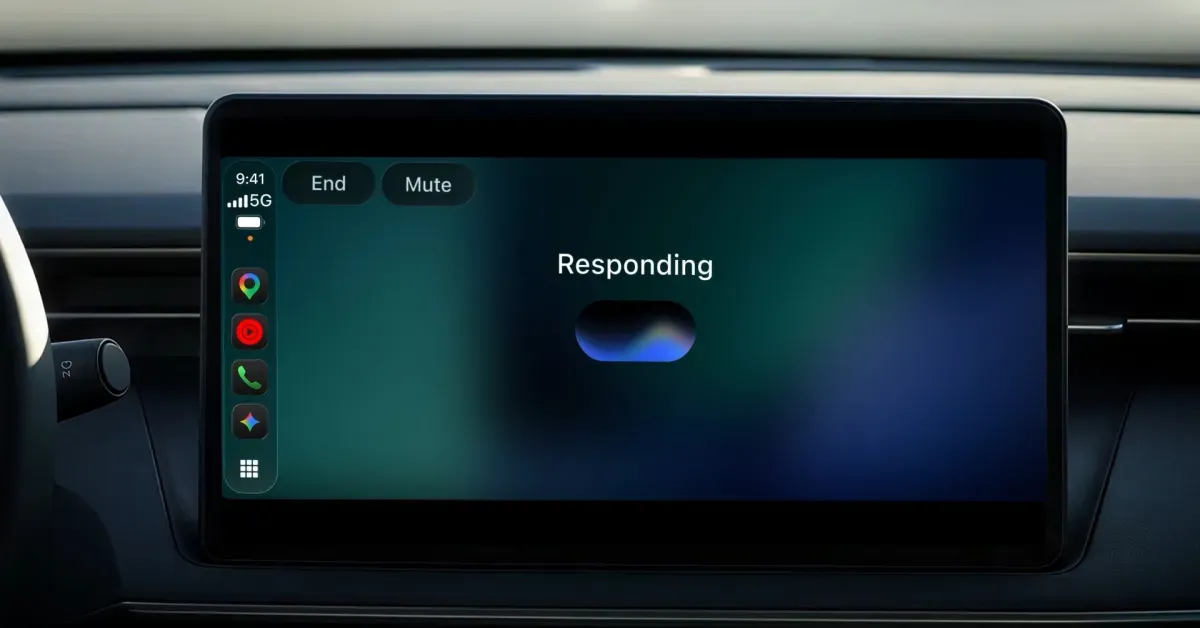
Gemini app for CarPlay rolls out globally to iPhone users
Google is bringing its Gemini app to CarPlay, letting iPhone owners talk to Gemini Live while driving, with conversations syncing back to the phone app.

Google Translate widgets get cleaner design in version 10.43
Google is rolling out a visual refresh for eight Translate widgets on Android, with tighter borders on larger widgets and new labels on smaller shortcuts.
Google Voice web app gets new look with grouped chats and SMS/MMS indicators
Google Voice has rolled out a redesigned web interface with a light gray background, grouped message bubbles, and SMS/MMS indicators, hinting at future RCS support.

Google Voice shows first signs of RCS support in app teardown
A teardown of the latest Google Voice Android app reveals early code pointing to RCS messaging, though nothing is live and Google has not confirmed anything.